Open the right item
Use the barcode to match the physical object with the count record.
A count from setup to final review
Move a physical inventory count through four clear stages: prepare the count file, scan stock where it sits, reconcile each variance, and review the final results.
Stage 01
Begin with the item and location records the team should verify, then define the scope before anyone starts scanning.
Prepare or import the count file with item identifiers, expected locations, and the starting information needed for comparison. Organize work by area, location, or assigned counter so progress can be reviewed in context.
See mobile stocktaking features →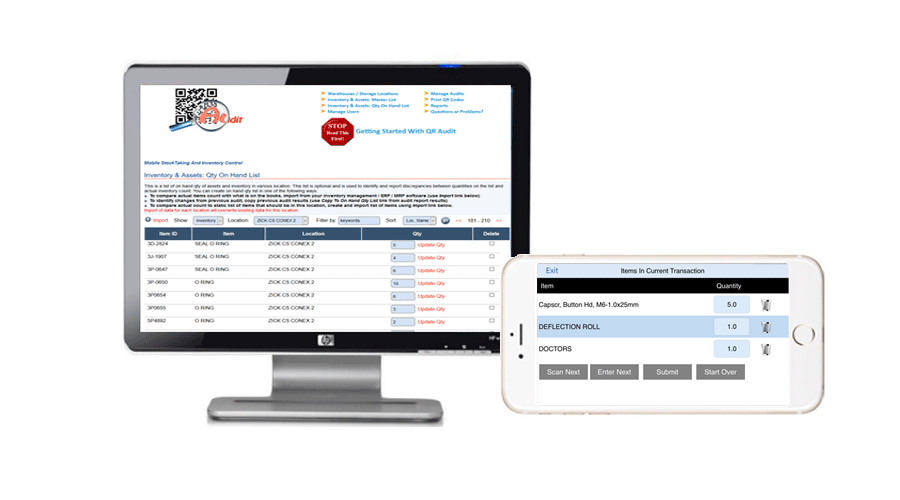
Stage 02
At the shelf, the worker scans the item barcode, the location barcode, or both, according to the count design.
The scan reduces repeated item-code entry. The worker still verifies the physical stock and records the quantity found rather than accepting the expected quantity without checking.
Use the barcode to match the physical object with the count record.
Scan or select the warehouse location required by the count.
Record what the worker actually sees, including zero when the item is absent.
Stage 03
A submitted quantity becomes a result to review, not an automatic inventory adjustment. Compare the count with the expected record and investigate each material variance.
Stage 04
Use the completed count to see what the team verified and where the submitted quantities differ from the expected record.
Review and export item and location details, counted quantities, raw count batches, and discrepancy reports. The organization can then investigate or repeat a count according to its own process.
Answers
A good count starts with clean identifiers, clear scope, and an agreed method for reviewing differences.
Prepare the item identifiers, expected locations, and any starting quantities the count will use. Then define the count scope and make the work available to the assigned team.
Depending on the count design, the worker scans an item barcode, a location barcode, or both, and then records the quantity physically present.
Submitted results are compared with the expected record. QR Audit reports the discrepancies so the organization can investigate and handle them through its own count process.